

Frame an app screenshot.
Drop in an image, then zoom and reposition it inside a fixed, polished viewport. Fast App Screens keeps the frame covered and the composition aligned.
Drop in your screenshots, add your copy, and export a polished, consistent set without rebuilding every composition in a graphics editor.
Free. Native macOS. No freeform design canvas required.

The selected layout handles spacing, typography, screenshot presentation, and exact output dimensions. You write the message, choose what to show, and customize the background with glows.
Every slide keeps the same strong headline and supporting subtitle. Choose the lower content that communicates the idea best.
Drop in an image, then zoom and reposition it inside a fixed, polished viewport. Fast App Screens keeps the frame covered and the composition aligned.
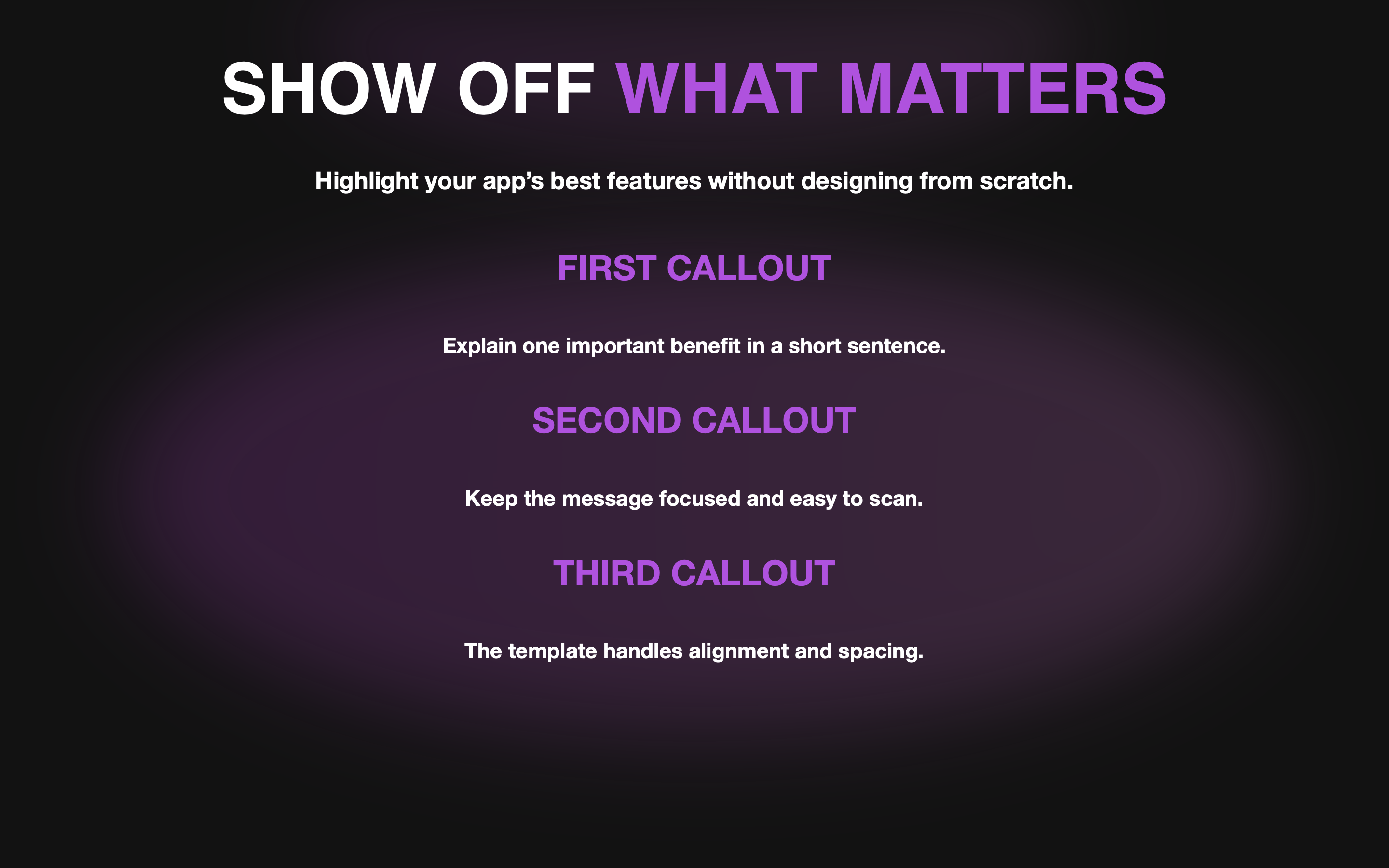
Replace the screenshot with one, two, or three structured feature callouts. The selected layout keeps their type, alignment, and spacing consistent automatically.
Choose the target platform once. The preview preserves its aspect ratio, and every export is rendered at the project’s full output size, independent of the editor window.
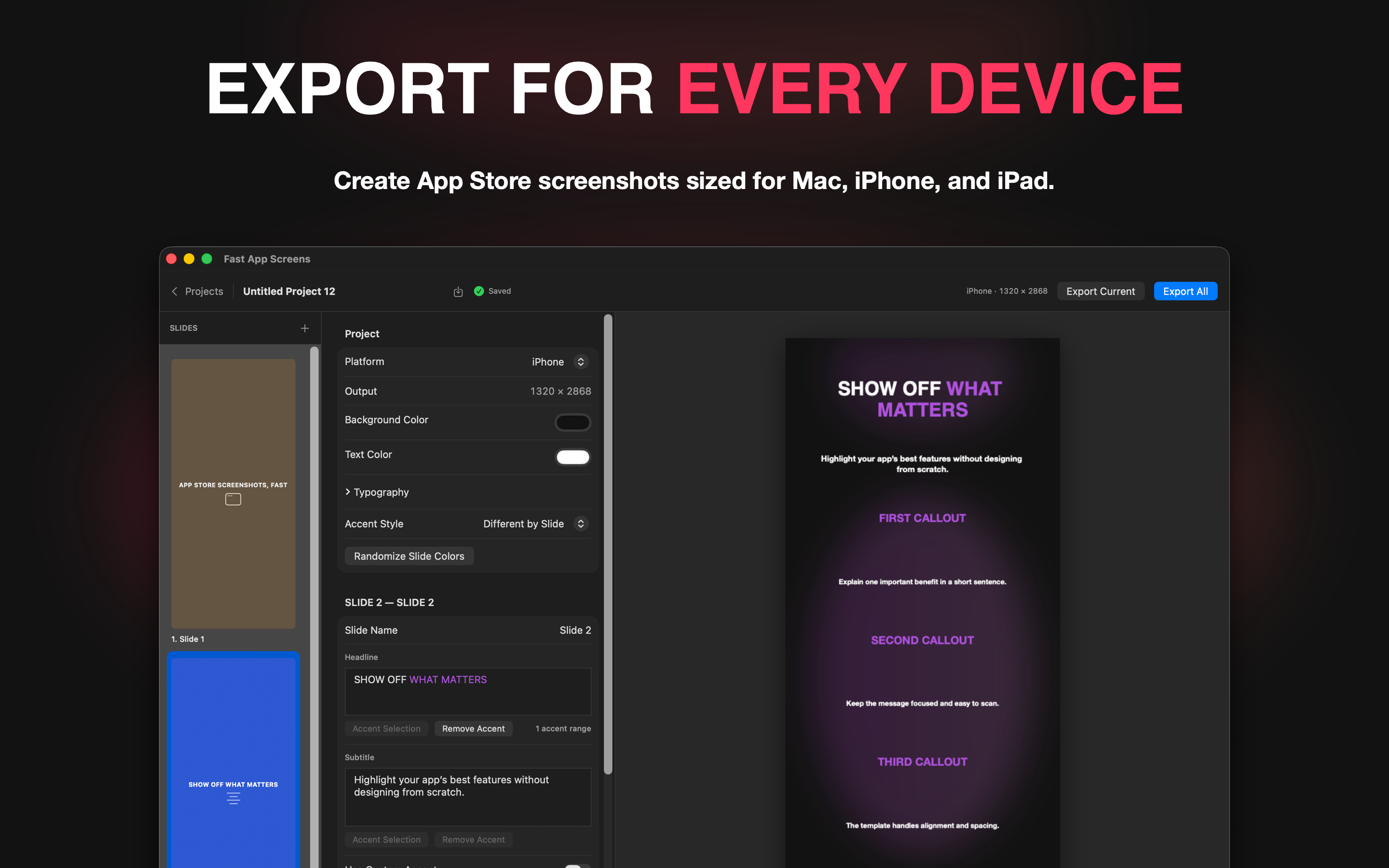
Choose the background, text color, accent behavior, typeface, and text sizes at the project level so every slide belongs to the same campaign.
Build the first slide, duplicate it, change the copy and screenshot, then reorder the set. The selected layout maintains consistency automatically.
Select a phrase in a headline, subtitle, or callout and apply the project accent color without assembling separate text boxes.
Pick Mac, iPad, or iPhone and set the shared appearance for the screenshot campaign.
Type the marketing copy, drop in screenshots or add callouts, and adjust image framing when needed.
Export the current slide or the whole ordered set at exact, full-quality output dimensions.
Yes. Fast App Screens is a free download from the Mac App Store.
Choose Mac, iPad, or iPhone. Fast App Screens exports full-quality PNG files at the exact dimensions shown in the project.
No. Text and content elements stay within the selected layout. You can still create a custom background by adding and arranging multiple glows, choosing colors, and starting from different templates.
Yes. Keep the main headline and subtitle, then use one to three structured callouts in the lower area instead of an app screenshot.
Projects are saved locally as portable Fast App Screens project files. Imported image assets are included so moving the project does not silently break it.
No. Fast App Screens processes projects and renders exports locally on your Mac. It does not require an account, analytics service, or Struck Anvil cloud upload.
Fast App Screens requires macOS 15 or later.
Both. Export the current slide directly, or export every slide in project order with predictable filenames.
Fast App Screens is available free on the Mac App Store.